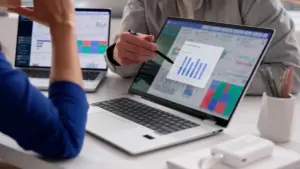










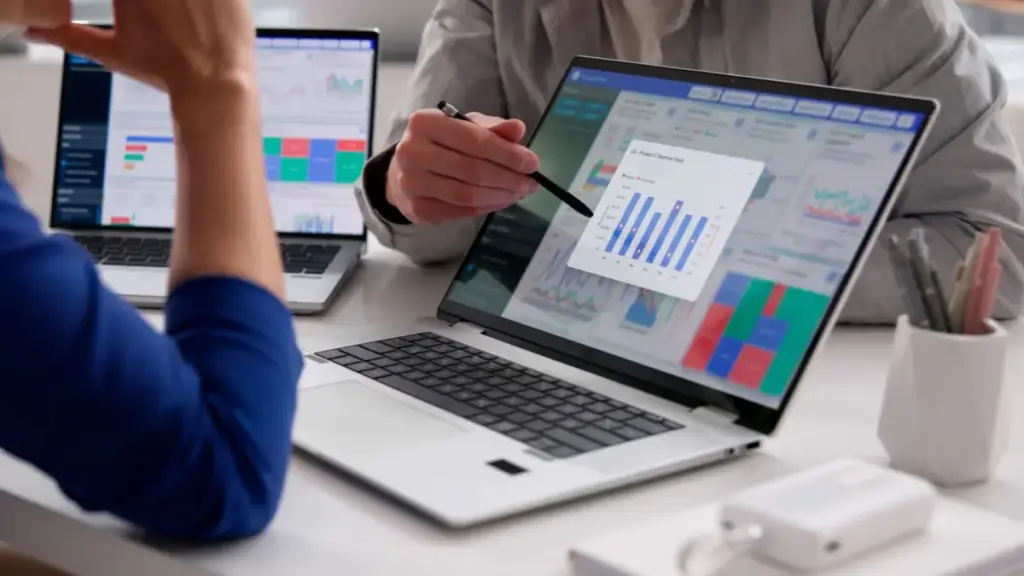
In the modern digital landscape, the quest for increased screen real estate has become a hallmark of the efficient home office. Whether for high-stakes gaming, complex data analysis, or simply balancing a dozen open browser tabs, the addition of a second monitor is widely considered one of the most effective ways to upgrade a daily workflow. While the traditional solution involves purchasing a dedicated external display, many users are discovering that the hardware they need might already be collecting dust in a closet. Transforming an older, spare laptop into a secondary screen is an ingenious way to boost productivity without the cost or clutter of acquiring new peripheral hardware.
However, users should be prepared for the reality that this process is rarely as simple as connecting an HDMI cable. Because the vast majority of laptop HDMI ports are configured exclusively for video output rather than input, a direct physical bridge between two laptops is rarely functional on its own. Instead, successfully repurposing a laptop requires a nuanced understanding of software-based casting, network-enabled protocols, or, in some cases, specialized hardware adapters. By adjusting system settings and leveraging the right connectivity tools, users can effectively extend or mirror their desktops across multiple machines, regardless of whether they are operating on Windows, macOS, or Linux.
Leveraging Windows-Based Ecosystems
For those working entirely within the Windows ecosystem, the process of turning a secondary laptop into an extension of a primary desktop is remarkably streamlined thanks to native operating system features. Windows 10 and 11 include built-in wireless casting capabilities that rely on the Miracast standard. This functionality allows two devices to communicate directly over a local Wi-Fi network, creating a seamless bridge between screens without requiring third-party software.
The configuration process begins on the secondary laptop, which will act as the "receiver." By navigating to the System settings and selecting the "Projecting to this PC" menu, users can configure how the machine handles incoming connections. If the feature is not immediately visible, it is likely because the "Wireless Display" optional feature has not yet been installed. Once the feature is enabled, the device can be set to be discoverable as a destination for other machines. After launching the Wireless Display app on the spare laptop, the primary machine can initiate a connection by using the Windows + K keyboard shortcut. From the resulting menu, the secondary device will appear as an available display.
Once connected, users can choose between duplicating their primary screen—ideal for presentations—or extending their desktop, which provides the coveted extra workspace for multitasking. A secondary shortcut, Windows + P, allows users to toggle between these modes on the fly. While this wireless approach is highly convenient, it is important to manage expectations regarding performance. Because the connection relies on Wi-Fi, there is an inherent latency that, while perfectly acceptable for document management or web browsing, may prove frustrating for high-frame-rate gaming or professional-grade video editing.

Cross-Platform Connectivity and Alternative Solutions
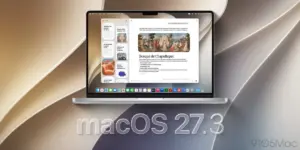
The landscape becomes slightly more complex when mixing operating systems or working with hardware that does not natively support Miracast. Apple users have a distinct, albeit hardware-restricted, path to a similar result. Through the AirPlay to Mac feature, users can utilize a MacBook as a second screen for another, provided both devices are running relatively recent software and hardware—specifically, MacBook models from 2018 or later. By ensuring both machines are signed into the same Apple ID and connected to the same network, users can enable the AirPlay Receiver in the System Settings. Once configured, the primary Mac can simply select the secondary laptop through the Displays menu to expand its desktop.
For users navigating environments that involve a mix of Windows, macOS, or Linux, native solutions often fall short, necessitating the use of third-party software. Applications like Deskreen have emerged as popular open-source solutions for these scenarios. Deskreen operates by turning the secondary laptop’s web browser into a display receiver. By ensuring both computers are on the same local network, the primary machine provides a URL or QR code that the secondary device accesses. This creates a bridge that mirrors the primary display by default. To achieve an extended desktop experience—rather than just a mirror—users often pair this software with a "dummy plug" or virtual display adapter. These inexpensive hardware components physically insert into the primary computer’s HDMI port, tricking the operating system into believing a physical monitor is attached, which in turn allows for the creation of an extended desktop workspace.
The Wired Alternative: Bridging the Gap with Capture Cards
For users who find the latency of Wi-Fi-based solutions to be an impediment to their work or play, a wired connection remains the gold standard. However, because standard HDMI ports are strictly one-way streets, users must employ a specialized intermediary: an HDMI-to-USB video capture card. This inexpensive device is a common tool for streamers, but it serves a dual purpose as a bridge between two computers.
By connecting the primary computer’s video output to the input side of the capture card and plugging the USB output into the spare laptop, the secondary machine essentially perceives the primary display as a high-definition webcam feed. Users can then open a video capture application, such as OBS Studio—which supports Windows, Mac, and Linux—to display the primary computer’s output within a window. While this method still involves a software layer, the physical connection via USB generally results in lower latency compared to network-based casting. This configuration is particularly effective for gamers who want to utilize their laptop screen as a monitor for consoles like a PlayStation or Nintendo Switch, providing a portable, albeit slightly constrained, gaming setup.
While the convenience of a dedicated, high-resolution monitor is undeniable, the ability to repurpose existing technology offers a flexible and sustainable alternative for those looking to expand their digital workspace. Whether through the seamless integration of Windows Miracast, the proprietary ease of Apple’s AirPlay, or the more robust wired connection provided by capture cards, the tools to transform a spare laptop are readily available. Should these solutions not suit a particular user’s needs, the laptop still remains a valuable piece of hardware, capable of being repurposed into a smart home hub or a dedicated server, ensuring that even aging machines can continue to provide significant value in a modern, connected home office.