










For years, Apple’s Shortcuts app has existed as a powerful, yet often overlooked, utility within the macOS ecosystem. Since its introduction in macOS Monterey, the tool has offered users the ability to string together complex sequences of actions to automate tedious tasks. However, despite its potential, many Mac users have found the barrier to entry daunting. The process of understanding which actions to choose, how to logically connect them, and the subsequent troubleshooting required when a sequence fails, has historically kept the app relegated to the realm of power users and tech enthusiasts.
This narrative is shifting significantly with the release of macOS 27 Golden Gate. Apple has introduced a transformative feature known as "Describe a Shortcut," which leverages the sophisticated capabilities of Apple Intelligence to bridge the gap between intent and execution. By allowing users to type exactly what they need in natural language, the system now performs the heavy lifting, translating abstract requirements into functional automated scripts. While the technology is still evolving and may not always yield a perfect result on the first attempt, it represents a monumental leap in accessibility, particularly for those who have previously found the logic-based structure of automation intimidating.
At its core, the Shortcuts app is designed to serve as a digital personal assistant. It allows for the creation of scripts that can handle repetitive tasks across a user’s device with minimal intervention. A classic example often cited by Apple is a shortcut that automatically drafts a text message to a spouse, calculating an estimated arrival time based on current traffic conditions the moment a user leaves their office. While these utility-focused scripts are useful, the potential for complexity is vast. Users can build sophisticated workflows that cross-reference data from multiple applications, such as a shortcut that aggregates calendar appointments, current weather data, and traffic reports to provide a comprehensive morning briefing the moment the Mac wakes from sleep.

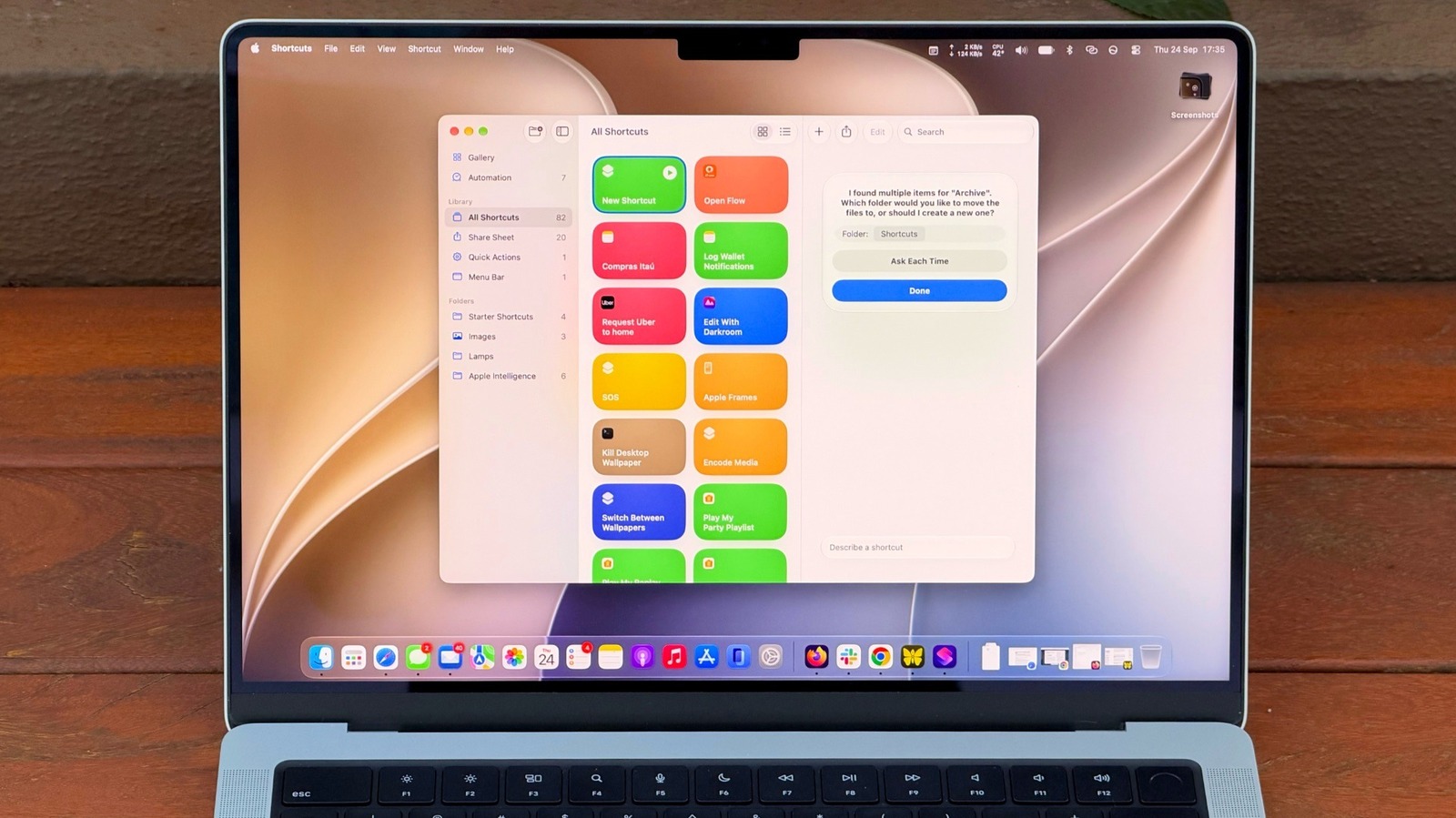
The introduction of Apple Intelligence into this environment changes how users interact with the app. Instead of manually dragging and dropping action blocks from a sidebar, users can now describe their goals, and the system attempts to assemble the necessary components. This integration is particularly useful for tasks that feel like "digital chores"—those minor, repetitive actions that clutter a workflow but are easy to forget. By lowering the cognitive load required to build these automations, Apple is effectively democratizing the power of script-based computing for the average consumer.
Creating Shortcuts on Your Mac is Now an Intuitive Process
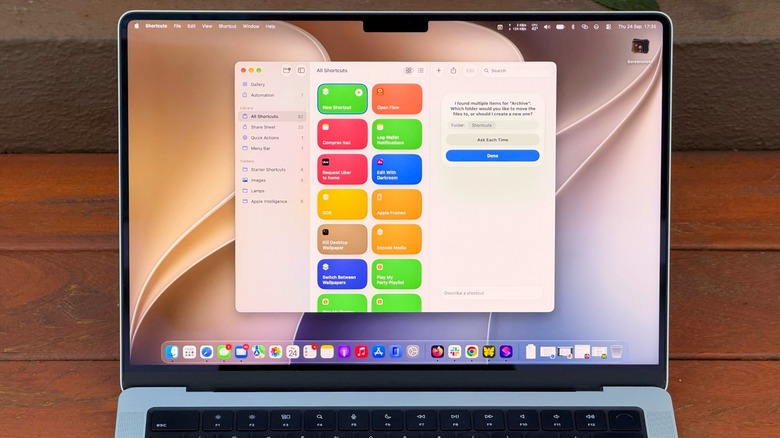
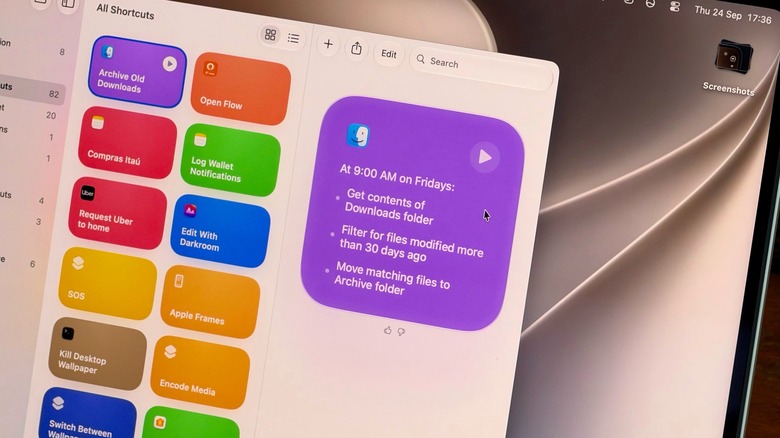
The process of creating a new shortcut has been refined to be nearly instantaneous. When a user opens the Shortcuts app on a Mac running macOS 27, they are greeted with a prompt to define their desired outcome. The efficacy of this tool is directly proportional to the clarity of the user’s input. For instance, a vague command like "Clean up my Downloads folder" may prove too ambiguous for the AI to interpret with precision. The system functions most reliably when provided with specific parameters and constraints. A far more effective prompt would be: "Every Friday, move any files in my Downloads folder that are older than 30 days into a folder named Archive."
By providing these specific details—timeframes, file locations, and destination directories—the user significantly increases the likelihood that the shortcut will perform exactly as intended. This example highlights a practical solution to a common problem: the accumulation of digital detritus in the Downloads folder, which most users ignore until they are forced to clear space for new files. By automating this, the Mac can maintain its own hygiene without requiring manual oversight. Furthermore, the immediate feedback loop allows for rapid refinement. Users can open the destination folder to verify that the files have been moved correctly. If the result is too aggressive or fails to catch specific items, the user can simply re-enter the prompt with more granular instructions, allowing the AI to adjust the logic accordingly.
Beyond file management, the integration of Apple Intelligence allows for more sophisticated content processing. One of the most compelling use cases involves the summarization of long-form text. A user can create a shortcut with a prompt such as, "Take the text currently on my clipboard, summarize it into three concise sentences, and save that summary as a new note in the Notes app." Once this is configured, the user can copy an lengthy email or a dense article from their browser, trigger the shortcut, and have a distilled version ready for review in seconds. This capability effectively turns the Mac into an active participant in research and information management, saving significant time that would otherwise be spent manually reading and summarizing content.
Making Your Shortcuts Easier to Reach
A common pitfall in adopting automation is the "out of sight, out of mind" phenomenon. Even the most useful shortcut is ineffective if the user forgets to trigger it or finds the process of opening the app to be more cumbersome than performing the task manually. To combat this, macOS 27 offers several ways to integrate these automations into a daily routine, ensuring they are always available when needed.
Users can assign custom keyboard combinations to their most frequently used shortcuts, allowing them to trigger complex workflows with a simple keypress. Additionally, shortcuts can be pinned directly to the menu bar or the Control Center. By opening the Control Center on a Mac and selecting "Edit Controls," users can add their preferred shortcuts as active widgets. This makes the power of automation just a click away from the top-right corner of the screen. For those who prefer a more hands-off approach, the "Automation" tab within the app remains a critical resource. It allows for the creation of workflows that run autonomously based on specific triggers, such as the time of day, the connection to a specific Wi-Fi network, or the opening of a particular application.
The advancements in macOS 27 extend beyond the Shortcuts app, as Apple Intelligence has introduced broader, system-wide interaction capabilities. A notable addition is "Visual Intelligence," which can be invoked by the keyboard shortcut Shift + Command + Space. This feature allows users to select any active window on their screen and have Siri perform context-aware actions. For example, if a user has an email open containing a specific date or appointment, they can trigger Visual Intelligence to extract that information and add it directly to their calendar without ever manually typing a date. This synergy between Siri, Visual Intelligence, and the Shortcuts app creates a cohesive ecosystem where the computer acts as an extension of the user’s intent.
It is important to note that these advanced features are strictly tied to the hardware requirements of Apple Intelligence. Consequently, the functionality is restricted to Macs equipped with an M1 chip or later. Users operating on Intel-based Mac hardware will not have access to these specific AI-driven enhancements in macOS 27. Furthermore, while the AI capabilities are robust, they are not infinite. Users may encounter limitations when attempting to execute extremely complex or resource-heavy prompts, as the AI models operate within specific computational parameters. For most standard automation tasks, however, the new tools represent a significant step forward in how users can manipulate and organize their digital environment, transforming the Mac into a more responsive and efficient tool for modern productivity.