












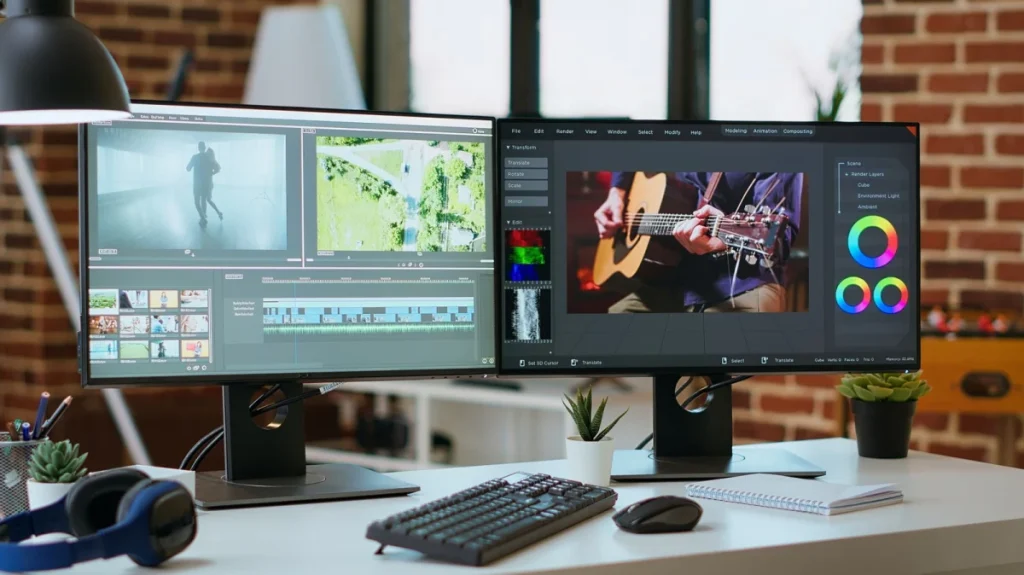
In the modern digital landscape, where the complexity of our daily tasks continues to evolve, the physical limitations of a single computer screen have become an increasingly common bottleneck. For many, the simple act of switching between browser tabs, messaging apps, and complex software packages has become a persistent friction point in their daily routine. However, a growing body of evidence and anecdotal experience suggests that the most effective upgrade a user can make to their workstation is not a faster processor or a more expensive keyboard, but rather the addition of a second monitor.
Expanding your digital workspace to include two, or even more, screens offers more than just extra space—it fundamentally changes how one interacts with their machine. By providing a dedicated environment for disparate tasks, dual-monitor setups allow users to maintain a continuous, fluid workflow, effectively eliminating the cognitive load associated with the constant "alt-tabbing" or window-minimizing required to navigate a single-screen desktop.
The Efficiency Case for Multi-Screen Setups
While the popular perception often relegates dual-monitor setups to the domain of professional gamers, stock traders, or high-end video editors, the practical utility of a second screen extends far beyond these niches. In reality, the benefits are universal, impacting anyone who juggles multiple streams of information.

Take, for instance, the average office professional. A common scenario involves referencing a document on one side of the screen while drafting an email or report on the other. On a single, standard-sized monitor, this often results in cramped, illegible windows or a tedious back-and-forth process that slows down momentum. With two monitors, this process becomes instantaneous. Dragging and dropping files across screens, copying data from a spreadsheet into a presentation, or keeping a communication platform like Microsoft Teams or Slack perpetually open on a side display ensures that the primary workspace remains uncluttered and focused.
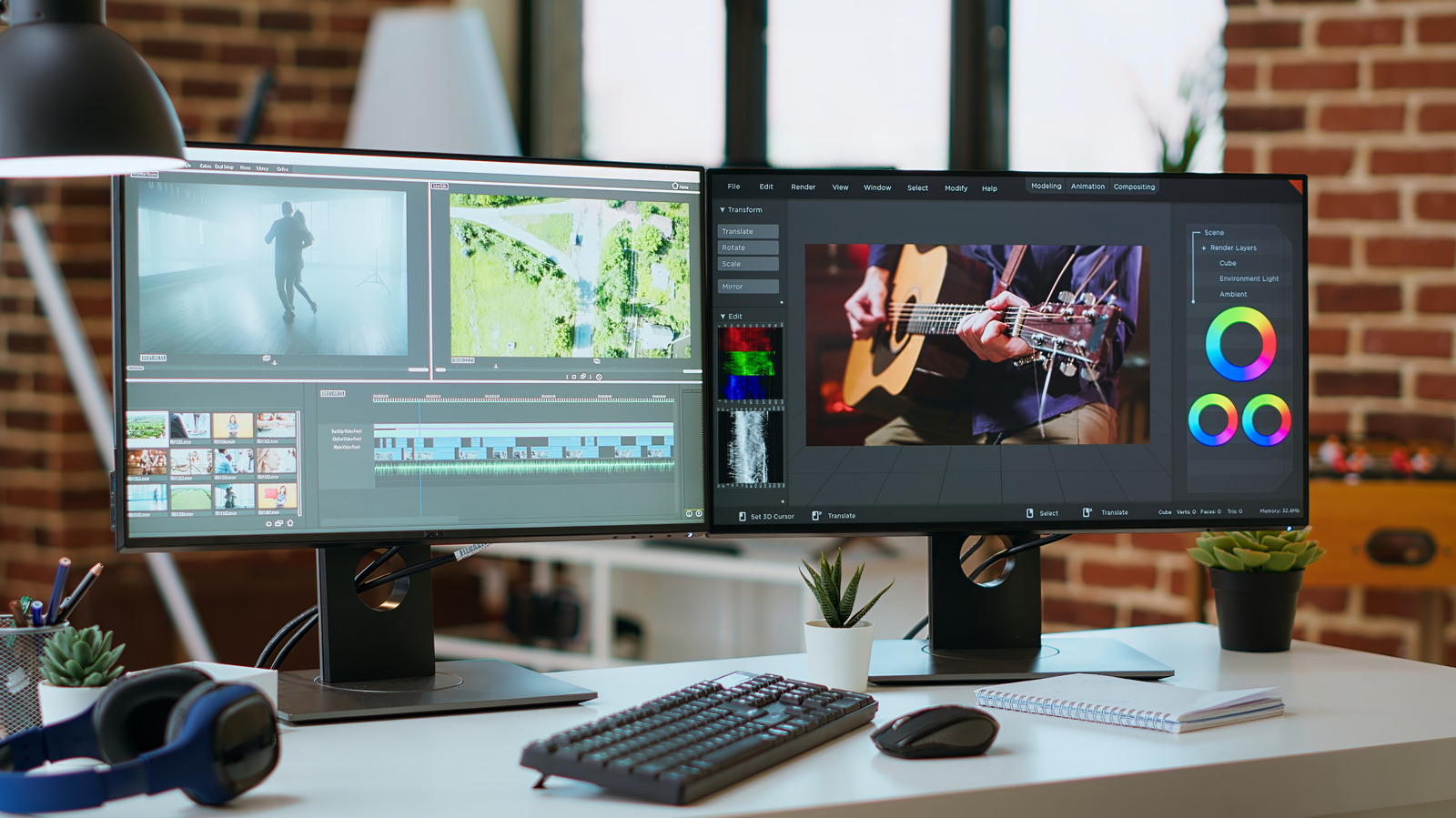
Studies have consistently suggested that this reduction in visual clutter and the ability to maintain a bird’s-eye view of multiple applications can lead to measurable increases in both productivity and job satisfaction. When the barrier to accessing information is lowered, the ease with which one can complete complex, multi-layered tasks improves significantly.
Usability Advantages: Beyond Simple Multitasking
The primary usability advantage of a second monitor lies in the sheer volume of "real estate" it affords the user. For those who rely on split-screen layouts on a single display, the sacrifice is often readability; fonts become smaller, and the vertical space is halved, forcing constant scrolling. A dual-monitor setup allows for two full-sized applications to run simultaneously, maintaining optimal resolution and legibility.
For creative professionals, this is essential. A designer can have their primary editing canvas on one monitor while keeping their tool palettes, color libraries, and reference images on the other. Data analysts can view massive datasets on one screen while running complex formulas or visualization tools on the adjacent display. This spatial organization prevents the "hidden window" syndrome, where critical information is tucked away behind another application, leading to lapses in attention or missed notifications.
The advantages are equally pronounced in communication-heavy environments. During video conferences, a second monitor serves as the perfect companion; users can maintain eye contact with their team members on one screen while simultaneously taking notes or navigating through the project files being discussed on the other. Similarly, for content creators or those recording educational videos, having a script or storyboard open on a secondary display allows for a seamless recording process without the need to toggle between a capture program and a text document.
Even in gaming, the secondary display has become a staple. It allows players to monitor frame rates, manage stream chat, engage with Discord servers, or reference strategy guides without ever interrupting the immersion of the game itself. By offloading these auxiliary tasks to a peripheral screen, the user preserves the integrity of their primary focus.
Strategic Organization and Hardware Considerations
Transitioning to a dual-monitor setup requires more than just buying a second panel; it demands a strategic approach to desk management and hardware integration. The goal is to create a seamless extension of the digital environment that does not introduce physical discomfort or unnecessary clutter.
One of the most significant, yet often overlooked, benefits of a dual-monitor setup is the reduction in paper waste. Many users continue to print out reference documents simply because they lack the screen space to view them alongside their active project. A second monitor effectively replaces the need for hard copies, reducing physical clutter and streamlining the research process. Furthermore, by opting for a dedicated secondary monitor rather than relying on a tablet or smartphone as an auxiliary screen, users can minimize the risk of mobile-based distractions that often accompany personal devices.
When selecting a second monitor, it is not always necessary to invest in high-end specifications. While color accuracy and high refresh rates are critical for a primary display used for professional design or competitive gaming, a more modest, budget-friendly monitor often suffices for a secondary screen. However, for a cohesive experience, there are aesthetic and functional standards to consider. Ideally, the second monitor should match the size of the first, creating a visual continuity that prevents eye strain when moving the mouse cursor between screens. Matching pixel density is also key to ensuring that text and images do not appear jarringly different in scale when dragged from one screen to the other.

Proper ergonomics must remain a priority during the installation. Using mounting hardware—such as adjustable monitor arms—can help ensure both displays are positioned at the correct eye level, preventing neck strain. Proper cable management is also vital to keep the workspace clean and professional. Users must ensure their computer has the necessary video outputs and that they have configured their operating system’s display settings to reflect the physical arrangement of the monitors.
For laptop users, this process involves an extra layer of configuration. Most modern devices, including contemporary MacBooks, are designed to support multiple external displays, but users should be mindful of settings that allow the laptop to remain operational when the lid is closed, often referred to as "clamshell mode."
Ultimately, while a second monitor may not be a constant necessity for every single task, its presence serves as a "game-changer" for those who frequently navigate between applications. By providing the space to keep essential tools within reach and visible at all times, the dual-monitor configuration transforms the computer from a sequential machine into a parallel, high-efficiency workstation. It is a simple, yet profound, adjustment that aligns the digital environment with the demands of modern, multifaceted work.