










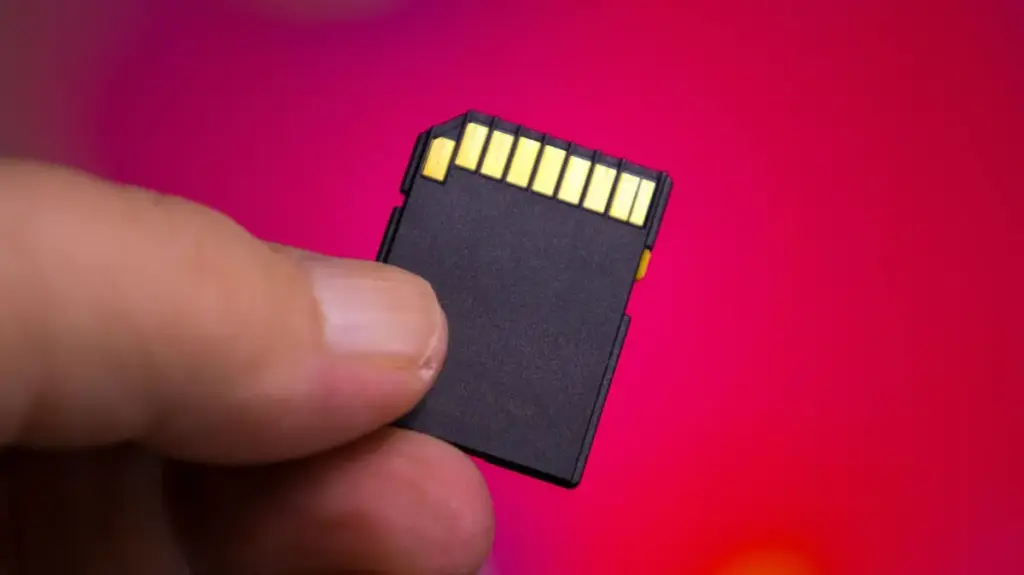
In the modern era of high-resolution digital media, SD card capacities have expanded at a staggering rate. Where once storage was measured in meager megabytes, today’s consumers routinely utilize microSD cards with capacities ranging from 128GB to a massive 1TB. Yet, despite these immense physical storage footprints, many users encounter a frustrating and seemingly inexplicable hurdle: the inability to transfer a single file that exceeds 4GB in size, even when the card has plenty of remaining capacity. This technical bottleneck often leads users to believe their hardware is malfunctioning or defective, when in reality, the issue is a legacy software limitation buried deep within the card’s file system architecture.
The core of this problem lies in the File Allocation Table 32, or FAT32, a file system that remains surprisingly prevalent in the technology industry today. Developed as an evolution of the earlier FAT file systems, FAT32 was introduced to the mainstream public with the launch of Windows 95. For its time, it was a revolutionary standard, but as computing needs have evolved, the design choices made three decades ago have become increasingly restrictive. Because the FAT32 system records file sizes using a 32-bit number, it inherently restricts the maximum value for any single file to 4,294,967,295 bytes, which translates to just under 4GB.
This limitation is a rigid mathematical constraint of the architecture rather than a physical failure of the SD card itself. For the average user who primarily stores small documents, spreadsheets, or compressed photographs, this ceiling is rarely an issue. However, in an era dominated by high-bitrate 4K video recording, high-resolution RAW photography, and large game installation files, the 4GB limit has become a significant obstacle. When a user attempts to drag a single file—such as a long-form video project or a high-definition movie file—onto a FAT32-formatted card, the operating system will return an error stating that the file is too large for the destination, regardless of whether the card has 500GB of free space available.

To move past this legacy restriction, users must transition their storage media to a more modern file system, most commonly exFAT (Extended File Allocation Table). Designed specifically to address the shortcomings of the older FAT standards, exFAT removes the 4GB file size limit entirely, allowing for the storage of massive files that meet the demands of contemporary digital workflows. While the transition is straightforward, it requires an understanding of how to reformat storage media without compromising compatibility with existing devices.
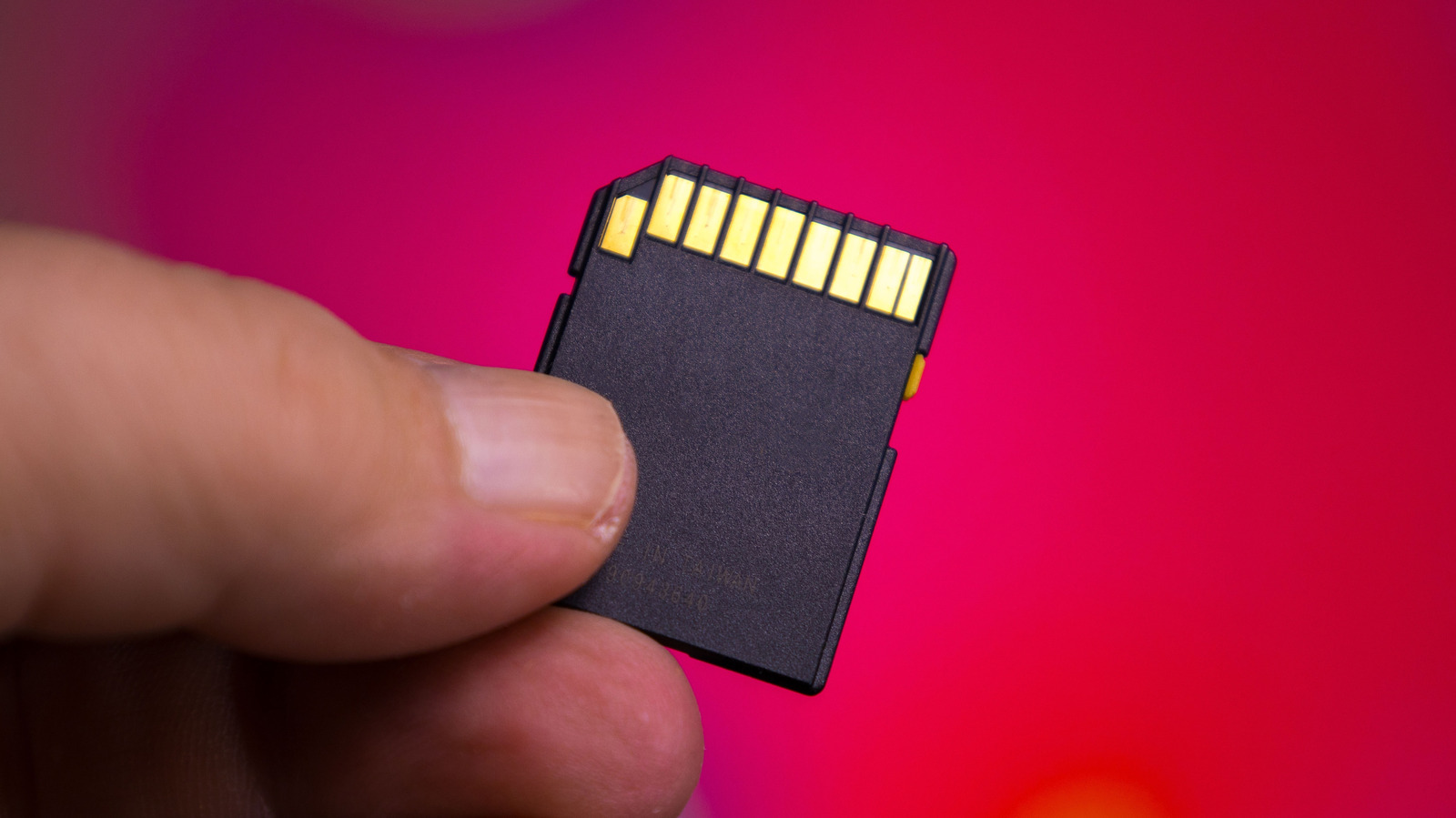
Before initiating a change in the file system, it is imperative to understand the implications for device compatibility. Because FAT32 has been the universal standard for decades, it is supported by virtually every device that can interface with an SD card, including older cameras, car stereos, and game consoles. Conversely, exFAT is a newer standard. Microsoft introduced support for exFAT starting with Windows Vista Service Pack 1, and Apple integrated it into the macOS ecosystem with the release of OS X Snow Leopard. If a user relies on legacy hardware—such as a professional-grade camera or a specialized recording device manufactured more than a decade ago—it is possible that the device may not natively support the exFAT format. In such instances, the hardware may fail to recognize the card entirely if it is reformatted, necessitating that the user remain on the FAT32 system.
For those using modern hardware, the process of reformatting is a routine administrative task that can be handled through standard operating system tools. However, the most critical step in this process is data management. Reformatting an SD card is a destructive process; it effectively wipes the file system table, rendering all existing data on the card inaccessible. Therefore, users must ensure that a full backup of all essential files has been performed and verified before proceeding.
On a Windows-based system, the conversion process is managed through File Explorer. By navigating to "This PC" and right-clicking the SD card, a user can access the "Format" menu. This interface allows the user to select the preferred file system—in this case, exFAT—and provides options for naming the volume or performing a "Quick Format," which simply clears the file index rather than performing a deep scan of every sector on the card. The procedure is identical to the standard steps taken when setting up a new USB flash drive or external hard drive.
For users operating within the macOS environment, the Disk Utility application serves as the primary tool for storage management. Accessed via Spotlight, the Disk Utility provides a more granular view of connected hardware. Users must be careful to select the actual SD card hardware from the list—often found by navigating to the "View" menu and selecting "Show All Devices"—rather than selecting a sub-partition or volume. Once the root device is selected, the "Erase" function allows the user to define the format as exFAT and apply a new name to the volume. Once the process completes, the card is immediately ready to accept files that exceed the 4GB threshold.
It is worth noting that while moving to exFAT solves the file size problem, the operating system sometimes imposes its own limitations on how users interact with these file systems. For instance, Windows has historically restricted the ability to format drives larger than 32GB as FAT32 through its standard GUI, likely to encourage the adoption of more modern, robust file systems like exFAT or NTFS. Should a user find themselves in the position of needing to revert to FAT32—perhaps to regain compatibility with a legacy device—they may discover that standard formatting tools will not offer FAT32 as an option for higher-capacity cards. In these instances, power users often rely on command-line tools like Terminal or specialized third-party formatting software to bypass these artificial constraints.
Ultimately, the 4GB barrier is a remnant of a bygone era of computing that continues to persist due to the sheer ubiquity of the FAT32 standard. As long as legacy devices remain in use, FAT32 will likely maintain its status as the lowest common denominator for cross-platform compatibility. However, for the modern user, the transition to exFAT represents a necessary evolution in how data is managed, ensuring that the massive capacities of today’s high-end SD cards are not artificially neutered by outdated software protocols. By understanding the underlying architecture of their storage media, users can ensure their hardware remains capable of handling the heavy data demands of current digital content creation and storage requirements.