












For the dedicated PC gaming community, the pursuit of high frame rates is often a central concern, frequently overshadowing the experiences of those who prefer the simplicity of consoles. This focus is well-founded; the PC platform provides a level of granular control that is simply unattainable elsewhere. From adjusting advanced rendering techniques and output resolutions to fine-tuning complex graphical presets, PC users have the power to mold their gaming experience to their specific hardware capabilities. However, a common misconception persists that achieving a smooth, high-fidelity experience—such as a locked 60 or 120 frames per second—requires a constant influx of capital to purchase the latest high-end graphics cards or additional memory.
In an era where many consumers felt compelled to rush into hardware upgrades to avoid potential shortages or performance bottlenecks, it is worth noting that for the fiscally prudent gamer, a significant performance uplift is often achievable through software optimization and smarter settings management. You do not necessarily need to obliterate your bank balance on a new GPU or a RAM upgrade to enjoy modern titles. By understanding the relationship between graphical fidelity and system load, users can unlock substantial performance gains on their existing rigs.
Before diving into the intricacies of software settings, it is essential to address the fundamentals of system maintenance. PC performance is often stifled by external factors that have nothing to do with the game itself. A cluttered system, burdened by unnecessary background applications competing for CPU cycles and memory, is a common culprit for performance dips. Ensuring that your operating system is not being bogged down by idle processes is the first step toward a smoother experience. Furthermore, physical maintenance is frequently overlooked. A gaming PC that has accumulated excess dust within its chassis will struggle with thermal regulation. As dust insulates components, the system must work harder to dissipate heat, leading to thermal throttling where the hardware intentionally slows itself down to prevent damage. A clean, well-ventilated machine allows components to operate at their intended speeds, effectively reclaiming lost performance without spending a dime.

Optimizing Graphics and Power Management
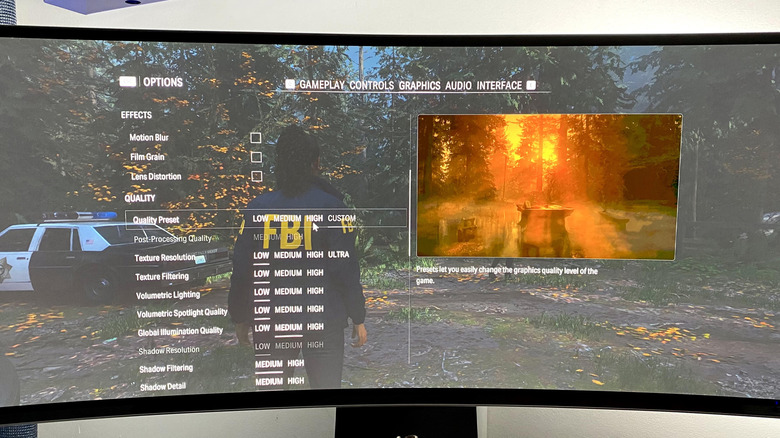
Once the system is physically and digitally cleared of debris, the next phase involves navigating the in-game menus. Modern titles offer a wealth of settings, but not all of them impact performance equally. Texture quality, shadows, and ambient occlusion are primary drivers of GPU strain. When struggling to maintain a stable frame rate, these are the first settings to target for reduction. Moving from "Ultra" to "Medium" or "Low" settings can yield massive improvements in frame rates, often with a negligible impact on the overall visual experience during the intensity of fast-paced action.
Beyond the quality sliders, specific features such as motion blur and V-Sync should be scrutinized. While V-Sync helps prevent screen tearing, it often introduces significant input lag, which can be detrimental in competitive titles. Disabling it and opting to cap your frame rate through the NVIDIA Control Panel or AMD Radeon software provides a much more responsive experience while still maintaining visual consistency. It is also worth noting that many modern games now feature robust auto-detect wizards. Titles such as Forza Horizon 6 and GTA V: Enhanced Edition utilize sophisticated algorithms to analyze your specific hardware configuration upon the first launch, applying an optimized preset that minimizes the need for tedious manual adjustments.
Beyond the game menus, system-wide settings can play a pivotal role. It is a best practice to ensure that your graphics drivers are current. Regularly checking for updates from NVIDIA or AMD ensures that you are benefiting from the latest performance patches and game-specific optimizations. However, users should remain cautious; if a specific driver update introduces instability, rolling back to a previous, stable version is a standard and effective procedure.
For those operating on Windows 11, the operating system offers specific power management features that can significantly alter performance profiles. Navigating to the Power and Battery settings to select the "Best Performance" mode can provide a tangible boost, particularly on gaming laptops that may otherwise prioritize battery longevity at the cost of raw processing power. Additionally, the integrated "Game Mode" in Windows settings should be kept active, as it is designed to deprioritize non-essential background processes while a game is running, effectively dedicating the lion’s share of your CPU and GPU resources to the software currently in focus.
The Role of Supersampling and AI Reconstruction
In the landscape of 2026 gaming, supersampling has emerged as a critical pillar for performance. As games become more graphically demanding, relying solely on native rendering is increasingly difficult for mid-range hardware. Technologies like NVIDIA’s DLSS 4.5, AMD’s FSR 4, and Intel’s XeSS have become essential tools. These upscaling solutions use AI and deep learning to render a game at a lower internal resolution before reconstructing it to a higher output resolution. This process allows the GPU to process significantly fewer pixels, leading to substantial gains in frame rates.
For example, using a "Quality" preset in DLSS allows for an image that is nearly indistinguishable from native resolution while only requiring the GPU to render roughly 66.7 percent of the total pixels. Even at "Ultra Performance" settings, where the internal render resolution drops to 33 percent, the AI reconstruction remains remarkably effective at maintaining image clarity. For users with the latest hardware, features like Multi Frame Generation can further inflate frame rates, though this comes with the caveat of increased latency. While these technologies can make graphically taxing games like Cyberpunk 2077 feel significantly smoother, the trade-off in input delay must be considered on a game-by-game basis.
The Performance Cost of Ray Tracing
If there is one area where performance is most easily recovered, it is in the realm of ray tracing. This advanced rendering technique, which simulates light, shadows, and reflections by calculating the physical path of rays in real-time, is undeniably transformative for visual fidelity. However, it is also the single most demanding feature currently available in PC gaming. Even the most powerful hardware currently on the market, such as the NVIDIA RTX 5090, can see its frame rates drop significantly when ray tracing is fully enabled.
For owners of mid-range or aging graphics cards, ray tracing is the first setting that should be disabled when trying to stabilize performance. Unlike traditional rasterized effects, which are pre-calculated, ray tracing places an immense, constant burden on the GPU. In many modern titles, toggling ray tracing off can result in an immediate doubling of your frame rate.
Path tracing, which takes the concept of ray tracing to its logical extreme by simulating the entire lighting system of a scene, is even more demanding. Currently available in only a handful of titles, path tracing can bring even the most expensive consumer hardware to its knees, often reducing performance to unplayable levels at high resolutions if upscaling technologies are not utilized. While the visual leap offered by these technologies is impressive, the cost in performance is frequently too high for all but the most elite hardware configurations. For the majority of gamers looking for a consistent, smooth, and enjoyable experience, disabling these "ultra-premium" features remains the most effective way to optimize a PC for the current generation of software. By balancing resolution, graphical settings, and modern upscaling techniques, players can achieve a high-quality experience without the need to replace their existing hardware.