








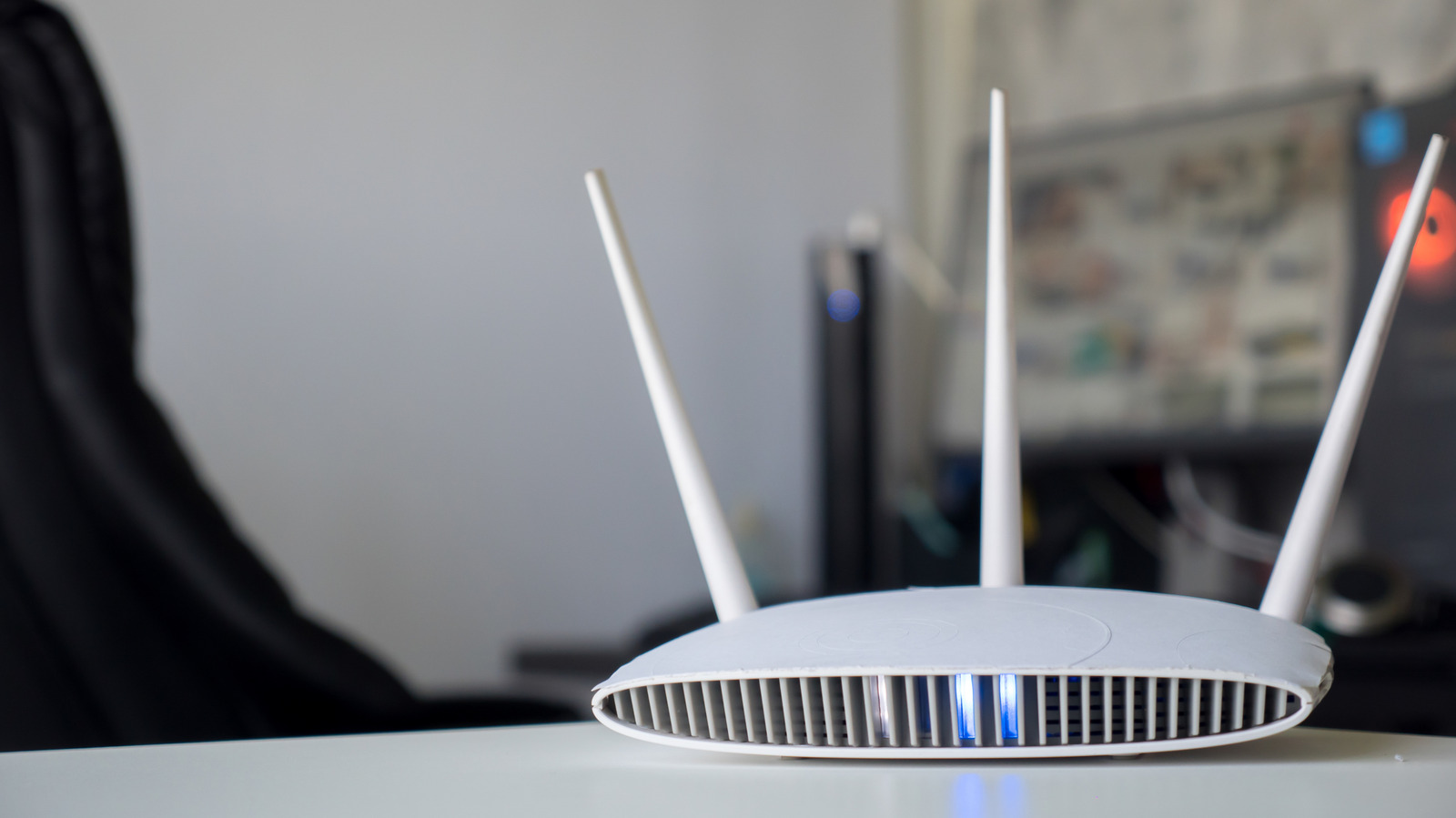
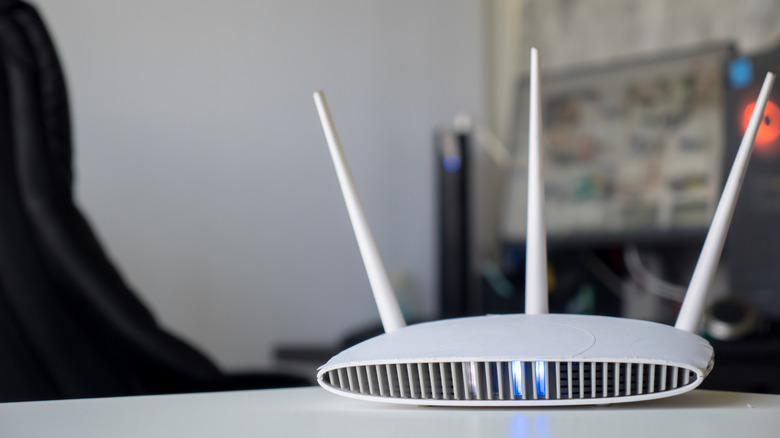
For the average household, a router is often relegated to a hidden shelf or a tucked-away corner, serving as a "set it and forget it" piece of infrastructure. However, when the internet connection drops or a device fails to connect, that unassuming plastic box becomes the center of attention. Most Netgear routers, like those from many other manufacturers, feature a front panel adorned with an array of cryptic symbols and blinking LEDs. To the uninitiated, these lights can feel like an indecipherable code. Yet, these indicators are the primary diagnostic tools provided by the manufacturer, designed to communicate the health of your home network, the status of your firmware, and the activity of your wireless bands.
Understanding what these lights signify is more than just a matter of curiosity; it is a critical skill for troubleshooting. Whether you are dealing with a standard standalone router or one of the company’s more sophisticated mesh Wi-Fi systems, knowing how to interpret these signals can save you from unnecessary frustration and time spent on hold with customer support.
The Most Critical Indicators: Power, Internet, and Wi-Fi
Among the various lights on the face of your Netgear device, a few hold significantly more weight than the others. These primary indicators—the power LED, the internet LED, and the Wi-Fi LED—provide a high-level overview of your network’s operational status. They are the first places you should look when connectivity issues arise.

The power LED, typically marked with the universal power symbol, is the foundational indicator. Its primary role is to relay the status of the router’s hardware and firmware. If this light is off, the router is clearly not receiving power, prompting a check of the power cable and the outlet. If the light is glowing, it generally confirms the unit is powered on. However, anomalies such as blinking or changing colors often indicate that the device is in the middle of a critical firmware update or, in some cases, experiencing a hardware failure. If you find your router in an unresponsive state, the standard industry practice is to perform a power cycle—turning the device off and on again. If that fails to restore normal operation, a factory reset might be required, though that should be approached with caution as it will wipe your custom configurations.
The internet LED, usually represented by a circle orbiting a larger sphere, is your direct window into your connection with your Internet Service Provider (ISP). This light serves as a diagnostic bridge between your home and the outside world. When it glows steadily, it indicates a stable connection between the modem and the router. A blinking light or a change in color, often from green to amber or red, is a clear signal that the router is struggling to establish a handshake with the ISP.
Finally, the Wi-Fi LED, often depicted as a small dot with two radiating curves, indicates the general activity of your wireless network. This light isn’t just a static "on" or "off" indicator; it is intended to pulse or blink to reflect data traffic. If your Wi-Fi is enabled but this light remains dim or off, it may suggest that the radio components are disabled in the software settings.
Beyond the Basics: Troubleshooting Specialized Ports and Bands
While the primary indicators cover the broad strokes of network health, modern Netgear routers are packed with secondary lights that offer granular detail. These are particularly useful when you are attempting to isolate a problem to a specific device, a specific frequency band, or a wired connection.
Most modern routers now feature dedicated LEDs for Wi-Fi bands, specifically the 2.4GHz and 5GHz frequencies. With the emergence of Wi-Fi 6E, many users are also seeing a 6GHz indicator. These lights are essential for understanding how your router is broadcasting its signal. If your older devices are failing to connect while newer ones work perfectly, checking these band-specific lights can help determine if one of the radios has been disabled or is experiencing a fault.
Physical connectivity also has its own dedicated diagnostics in the form of Ethernet LEDs. Usually numbered to correspond with the physical ports on the back of the device, these lights are crucial for anyone who prefers a wired connection for gaming or high-bandwidth tasks. The color of these lights is typically tied to connection speed: white or green usually signifies a high-speed, 1 Gbps connection, while amber often denotes a slower 100 Mbps or 10 Mbps link. If you have a high-speed plan but your Ethernet light is glowing amber, it is a clear indicator that either the cable is faulty or the connected device is incapable of negotiating a higher speed.
Furthermore, you may encounter USB LEDs, marked with the trident symbol or the text "USB 3.0." These lights are active when an external storage device or printer is connected to the router’s USB port. Finally, there is the WPS (Wi-Fi Protected Setup) LED. This light tracks the status of the WPS feature, which allows for a quick, button-press connection for new devices. While convenient, it is worth noting that from a security standpoint, many network professionals recommend keeping WPS disabled to prevent unauthorized access to the network.
Reading the Orbi Mesh System
As networking technology has evolved, so has the design of our routers. Netgear’s Orbi mesh Wi-Fi systems, designed to blend into modern home decor, utilize a much more minimalist approach to status indicators. Unlike traditional routers that broadcast their status through a cluster of blinking lights on the front panel, the Orbi uses a single, subtle light ring or indicator located at the bottom-front of the device to communicate its state.
The front LED on an Orbi unit is designed to provide immediate feedback on the connection between the satellite and the main router. A solid color, typically white or blue, often indicates a healthy, high-quality backhaul connection. If the light changes to amber or magenta, it is a warning that the satellite is too far away from the router to maintain a strong signal, prompting the user to reposition the hardware for better performance.
The back of the Orbi unit contains a separate LED dedicated to power and firmware status. This separation of concerns—keeping connectivity indicators on the front and hardware status on the back—reflects the Orbi’s design philosophy of prioritizing aesthetics without sacrificing the diagnostic capability required by the user.
In the modern smart home, the router is the backbone of almost every digital interaction, from streaming 4K video to managing home security systems. While these devices are increasingly autonomous, the ability to interpret the blinking lights on the front of your Netgear router remains a vital skill. By understanding these subtle cues, users can move from helpless frustration to informed troubleshooting, ensuring their home networks remain fast, secure, and reliable. Whether you are dealing with a standard router or a complex mesh system, the manufacturer’s design intent is always to provide a clear, visible status report—if only you know how to read it.