








Your personal computer is rarely truly idle. Even when you have minimized every application, closed your browser tabs, and stepped away from the desk, your machine remains a hive of activity. Under the surface, the Windows operating system is constantly managing a complex ecosystem of background tasks—checking for security patches, synchronizing files with cloud storage, and maintaining the vital system services that keep your hardware communicating with your software. While much of this activity is essential for a stable and secure computing experience, it often comes at a cost. Occasionally, background processes can spiral, consuming excessive processing power or memory and leaving fewer resources for the tasks you actually want to perform.
Developing a routine of monitoring your PC’s background processes is more than just a task for power users; it is a fundamental aspect of digital hygiene. By gaining a baseline understanding of what should be running on your system, you become far better equipped to identify when something is amiss. This does not imply that you need to obsessively track resource metrics throughout the day, nor does it mean that a long list of active processes is inherently problematic. Instead, it is about maintaining a healthy awareness of your system’s "normal" state. When you know what is supposed to be running, you can quickly spot the outliers—the processes that are dragging down your performance or silently draining your resources—allowing you to make informed decisions about which services to leave alone and which to terminate.
Using Task Manager as Your Primary Diagnostic Tool
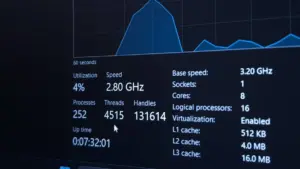
Background processes are effectively programs, or segments of larger applications, that operate without direct user interaction. They handle everything from the mundane, such as indexing your hard drive or verifying software licenses, to critical system functions that enable your desktop environment to render windows and respond to mouse clicks. When you find your system feeling sluggish, the Task Manager remains the definitive starting point for diagnostics.

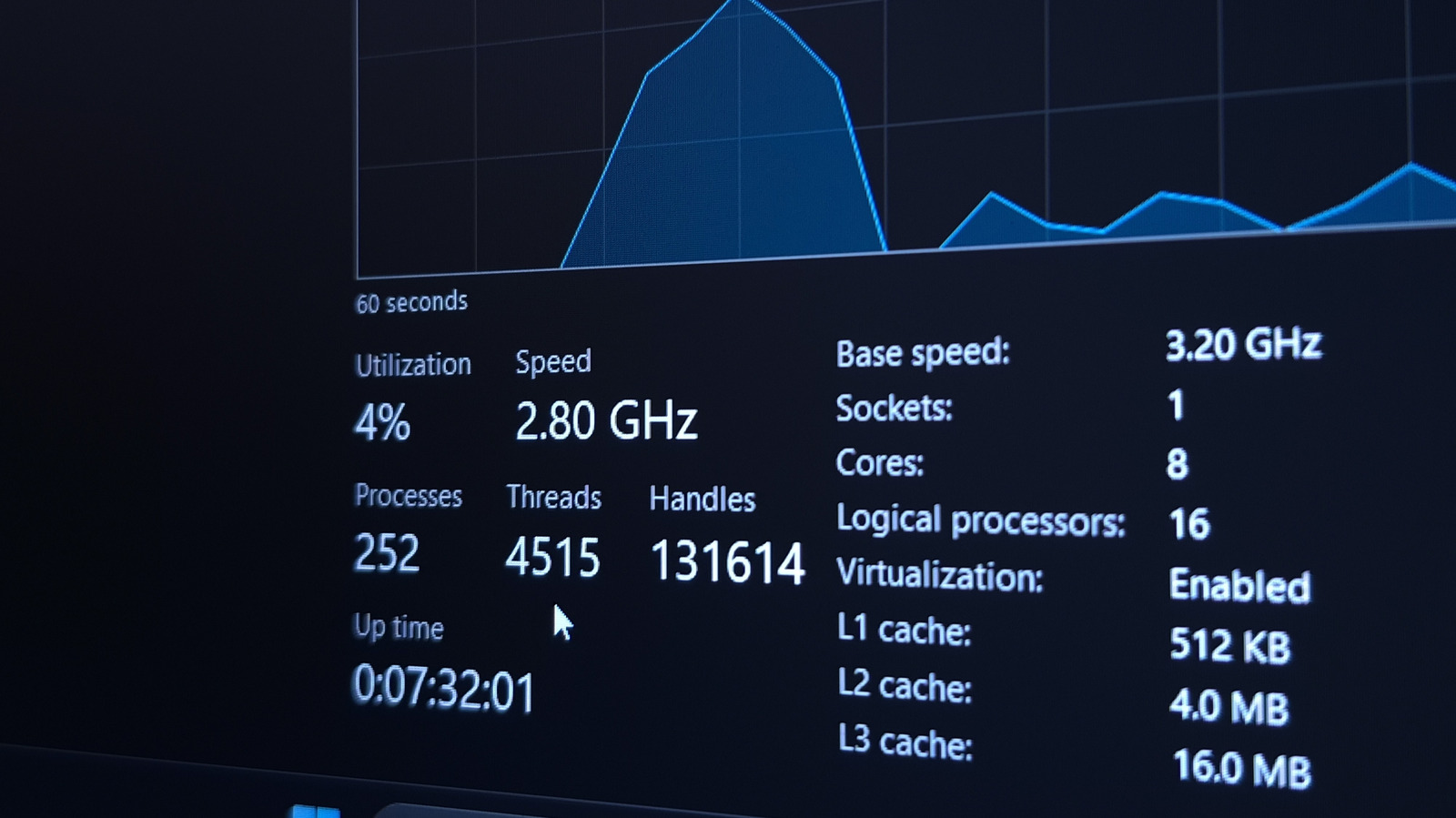
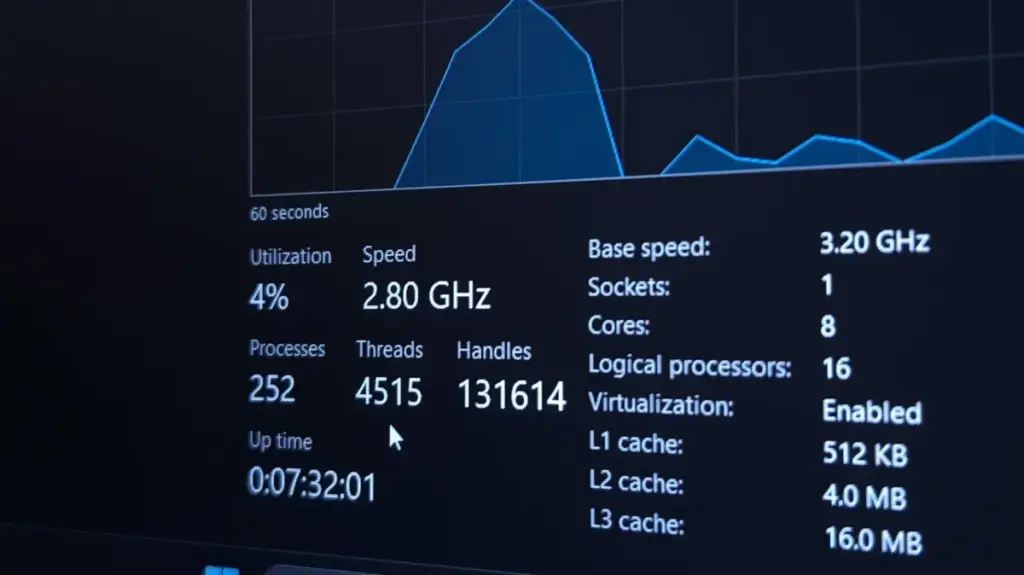
Accessing this tool is straightforward, with several keyboard shortcuts designed for quick entry. Pressing Ctrl + Shift + Esc will launch the utility immediately, though the classic Ctrl + Alt + Delete sequence also provides a reliable path to the Task Manager. Alternatively, right-clicking the Start button or an empty section of the taskbar offers a simple, mouse-driven route. Once open, the "Processes" tab serves as the primary dashboard. By clicking on the "Name" column header, you can group processes by their function, distinguishing between active applications, background services, and core Windows system tasks. Sorting by CPU, Memory, Disk, or Network column headers is equally vital, as it forces the most resource-intensive processes to the top of the list, immediately highlighting potential bottlenecks.
Interpreting the Activity Under the Hood
The list of processes in Task Manager can appear daunting to the uninitiated, yet it is often more intuitive than it first seems. You will immediately recognize many of the entries, such as your web browser, communication apps, or the Task Manager itself. However, other entries are less transparent. A game launcher, for instance, might leave an updater or a social integration module running long after you have finished playing, silently consuming bandwidth and memory.
It is crucial to approach these unfamiliar entries with caution. Do not assume that a process is unnecessary or malicious simply because you do not recognize its name. Windows relies on hundreds of background services to function; deleting or disabling the wrong one can lead to system instability. Google Chrome serves as an excellent case study in why this is complex: a single browser window can spawn dozens of individual processes, each handling a different tab, an extension, or a hardware acceleration task. Chrome even includes its own internal task manager, accessible via Shift + Esc, which provides granular detail about what each sub-process is actually doing.
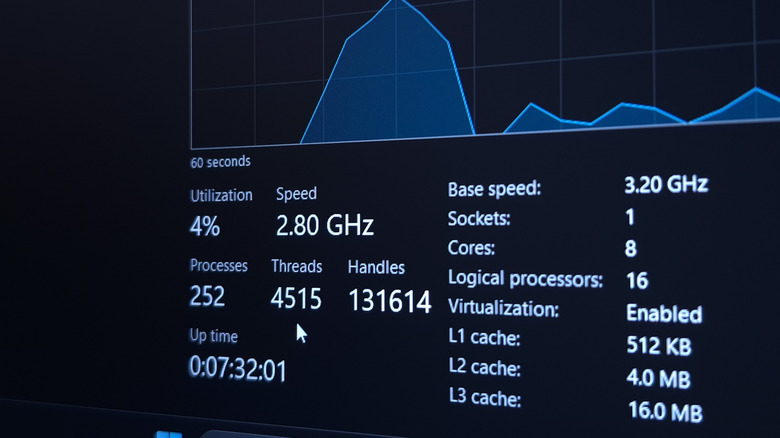
There is no "correct" number of background processes that should be running at any given time, as this varies wildly depending on your specific hardware configuration and the software you have installed. A machine with limited RAM or an older processor will naturally feel the impact of background activity more acutely than a high-end workstation. By monitoring your PC when it is running at its best, you establish a mental benchmark. When you eventually notice sustained high activity, that baseline comparison becomes invaluable, helping you distinguish between standard system maintenance and a process that has malfunctioned or become a "resource hog."
Managing Resources and Addressing Stubborn Tasks
If you identify a process that is consistently monopolizing your CPU or RAM, your first instinct might be to terminate it. While Task Manager allows you to kill almost any running process, it should not be your default response. Often, a process that seems to be acting out is simply performing a necessary, albeit heavy, job—such as a large-scale system update or a background database re-indexing.
The best practice is always to attempt a clean exit. Use the "X" button on the application window, or navigate to the File menu within the app to select Quit. If the application has an icon in the system tray near your clock, right-click it to see if it offers a dedicated exit command. When these standard methods fail—particularly if an application has hung or crashed—then, and only then, should you turn to Task Manager. By right-clicking the process and selecting "End task," you can force the program to close. Be aware that this is a blunt instrument; it does not give the application a chance to save your data or close files gracefully.

For processes you cannot identify, utilize tools like "Open File Location" by right-clicking the entry in Task Manager. This shows you exactly where the file resides on your drive, which can often provide a clue to its origin. If a process refuses to close or seems to be behaving suspiciously, you may be facing a security issue rather than a performance one. In such cases, running a scan with Windows Security or performing an offline scan using Microsoft Defender can be an effective way to identify and quarantine potential malware. The offline scan is particularly powerful, as it reboots your computer into a clean, restricted environment where malicious software cannot hide or defend itself.
Optimizing Background Activity for Gaming
For gamers, the management of background processes is a matter of practical necessity. Competitive and high-fidelity gaming requires every available cycle of your processor and every byte of available memory to maintain a consistent frame rate. Background tasks can cause "stuttering" or input lag, which can be devastating in fast-paced environments.
The most common culprits are background downloads and update services. If you are playing a game, ensure that other game launchers are not simultaneously downloading patches for other titles. Beyond that, consider the impact of recording software. While tools like the Windows Game Bar offer convenient ways to capture gameplay, they do draw on system resources. If you notice performance drops, you may need to adjust these settings or ensure that third-party recording software is not doubling up on your system’s load.
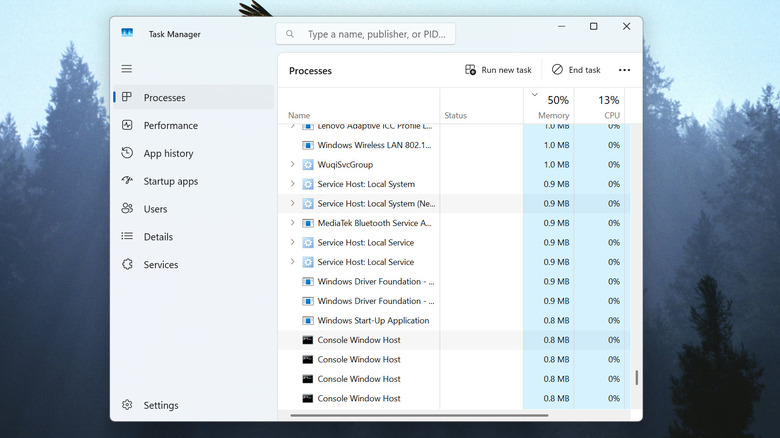
Another highly effective strategy is controlling your startup applications. Many programs are designed to launch the moment you turn on your PC, running silently in the background even if you never intend to use them that day. By navigating to the "Startup apps" section in the Task Manager, you can selectively disable these programs. This prevents them from cluttering your system memory from the moment you log in. Ultimately, managing your background processes is a balancing act. Your PC is designed to prioritize tasks, and you do not need to eliminate every background process to achieve peak performance. Instead, by remaining observant and understanding what is driving your system’s resource usage, you can ensure that your computer remains responsive, efficient, and ready for whatever task you have planned.