











Apple Music has firmly established itself as a premier streaming platform, standing as a top contender in a competitive market defined by heavyweights like Spotify and Tidal. For users deeply embedded in the Apple ecosystem—relying on iPhones, iPads, and Mac computers—the service offers a uniquely integrated experience. However, a common misconception is that Apple Music remains a walled-garden application. In reality, Apple has expanded its footprint significantly, allowing subscribers to access their curated libraries across Android smartphones, Windows-based PCs, and even various smart television platforms. Yet, for many, the transition between these devices is not always as instantaneous as expected. Users often find that after logging into a new device, their meticulously curated playlists and extensive music libraries fail to appear, leading to confusion and the perception that the service is malfunctioning.
The core of this issue rarely lies in a technical glitch or a service outage, but rather in the management of user settings and account synchronization protocols. Ensuring that your digital collection follows you from your morning commute on an Android phone to your home office desktop is a straightforward process, provided you understand the mechanics of the "Sync Library" feature. This function acts as the bridge between your local storage and Apple’s cloud infrastructure, ensuring that changes made on one device are propagated across your entire digital collection.
The Foundation of Synchronization: Account Consistency
Before diving into complex settings or troubleshooting protocols, it is essential to address the most frequent culprit behind synchronization failures: account fragmentation. Apple Music relies on the Apple Account (formerly known as the Apple ID) to identify the user and retrieve their specific cloud-based data. If you are signed into an iPhone with one email address and a Windows PC with another, the system has no way of knowing that the two devices belong to the same listener. Consequently, the libraries will remain siloed and distinct.

To verify your status, users should open the Apple Music application and navigate to the Home tab. By selecting the profile icon, one can quickly inspect the email address associated with that specific session. If the credentials do not align across your devices, the library will not sync. The solution is as simple as signing out of the secondary or incorrect account and re-authenticating with the primary credentials tied to your Apple Music subscription. Once the accounts are unified, the synchronization process can begin in earnest.
Activating and Managing the Sync Library Feature
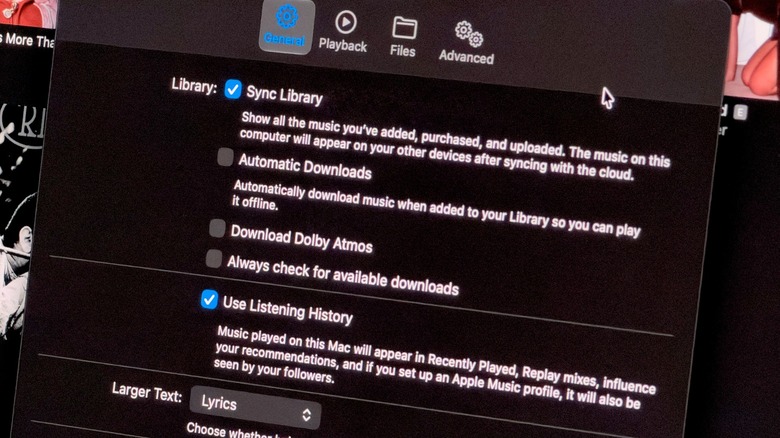
Once account consistency is confirmed, the next priority is ensuring that the software’s synchronization engine is actually engaged. This is governed by a toggle known as "Sync Library." This setting effectively instructs the application to continuously scan your local changes—such as adding a new album or creating a custom playlist—and upload those modifications to the cloud, while simultaneously downloading any changes made on other devices.
On mobile devices running iOS or iPadOS, this control is housed within the broader system settings rather than the music app itself. Users must navigate to the main Settings menu, locate the Apps section, and then select the Music application. Within this submenu, the "Sync Library" option will be visible; ensuring it is toggled to the "on" position is the primary requirement for a seamless experience.
For users operating within the Apple desktop environment, the process is slightly different but equally accessible. Within the Music app for macOS, the settings are located under the "Music" menu in the top navigation bar. Under the General tab, the Sync Library checkbox must be marked. Once the user clicks "OK," the system saves the preference and initiates the handshake between the desktop application and the cloud.
Windows users face a similar workflow, though the interface reflects the standard Windows design language. By accessing the settings menu—typically found by clicking the three-dot icon within the application—users can locate and enable the synchronization feature. It is worth noting that for those utilizing the service on Android devices, the feature is usually enabled by default upon installation, reflecting a design philosophy aimed at minimizing friction for cross-platform users.
When these settings are first enabled, especially for users with extensive libraries spanning thousands of tracks, the initial synchronization may take several minutes. During this period, the application is performing a comprehensive audit of your library, comparing your local data with the cloud record to ensure consistency. During this phase, it is advisable to keep the application open and ensure a stable internet connection, as closing the app prematurely can interrupt the initial handshake and lead to incomplete library transfers.
Troubleshooting Persistent Synchronization Issues
In instances where the library fails to update despite having the correct settings and account information, there are several advanced diagnostic steps available to force a refresh. For desktop users, the application provides a manual override. By navigating to the "File" menu and selecting "Library," users can choose the "Update Cloud Library" command. This action explicitly commands the software to perform a fresh scan of the library and reconcile any discrepancies with the Apple servers. While this is an incredibly effective tool for Mac and Windows users, it is important to note that the mobile versions of the application do not currently feature this manual trigger, relying instead on the background synchronization process.
Beyond internal application settings, external environmental factors play a significant role in synchronization efficiency. Many mobile devices utilize "Low Power Mode" to preserve battery life, which often restricts background data processes and network activity. If an iPhone or Android device is in a power-saving state, it may intentionally pause the synchronization of your music library to save resources. Furthermore, a weak or unstable Wi-Fi connection can prevent the cloud from successfully receiving or sending updates. Ensuring that your device is adequately charged and connected to a reliable network is often the quickest way to resolve persistent syncing delays.
If these measures fail, a "hard reset" of the synchronization process is often the most reliable remedy. This involves navigating back to the settings menu, disabling the Sync Library feature entirely, and then re-enabling it. This forces the device to re-establish the connection from scratch, often clearing out temporary cache issues that may have caused the process to hang. Similarly, a full sign-out and sign-in cycle can refresh the authentication tokens that allow your device to access your cloud-based media.
For a small subset of users who do not subscribe to Apple Music but maintain a large, locally stored music library on a computer, the synchronization process is entirely different. In these cases, the cloud is not utilized to host the library, and users must resort to traditional file management techniques. This involves using Apple’s official tools, such as iTunes or the Apple Devices app, to manually transfer the local music folders between hardware. This is a deliberate choice for users who prefer total control over their files without relying on streaming-based cloud architecture.
While mastering these settings ensures that your library is always ready for playback, it is also an ideal opportunity to review other aspects of your listening experience. Once the Sync Library feature is operating reliably, users may want to explore additional toggles within the settings, such as adjusting audio quality preferences. For audiophiles looking to maximize their listening experience, enabling features like Lossless Audio—provided you have the necessary hardware and bandwidth—can elevate the quality of the tracks that you have worked so hard to keep perfectly synced across your digital life. Through a combination of proper account management, active setting oversight, and the occasional manual update, users can maintain a cohesive, high-quality music library that remains fully accessible regardless of which device is currently in their hand.