











In the modern smart home, the demand for stable, high-speed internet connectivity has reached an all-time high. From 4K streaming devices and high-end gaming consoles to desktop workstations, network-attached storage (NAS) drives, and various smart home hubs, our reliance on a robust network infrastructure is undeniable. Consequently, a common frustration for many users is the realization that their router—the central hub of their digital life—simply does not have enough Ethernet ports to accommodate every wired device. When you run out of physical ports, it is easy to assume that your only path forward is to purchase an expensive new router or resort to the inherent inconsistencies of Wi-Fi for devices that would perform better with a physical connection. However, the solution to this connectivity bottleneck is far more accessible, affordable, and straightforward than many consumers realize.
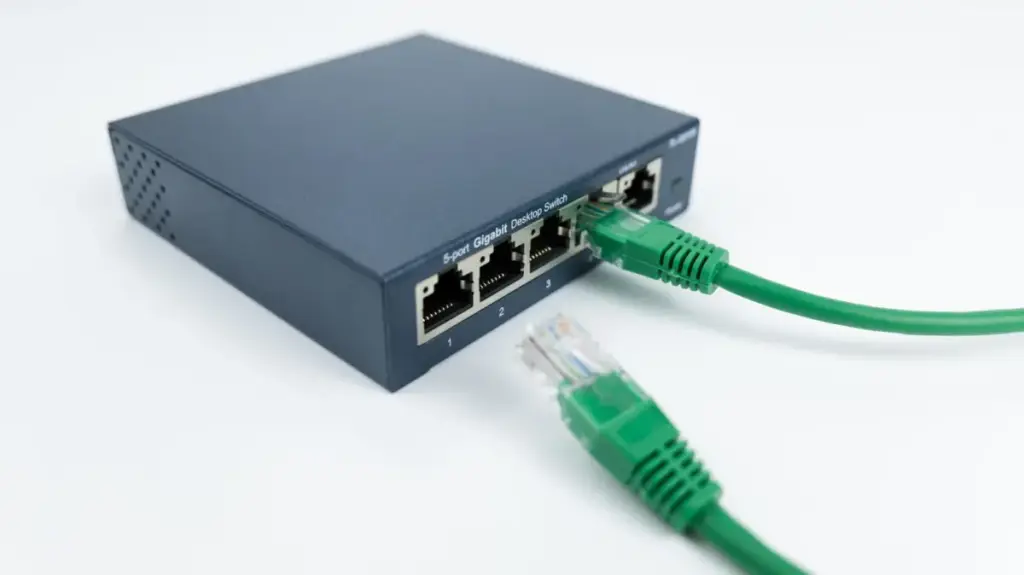
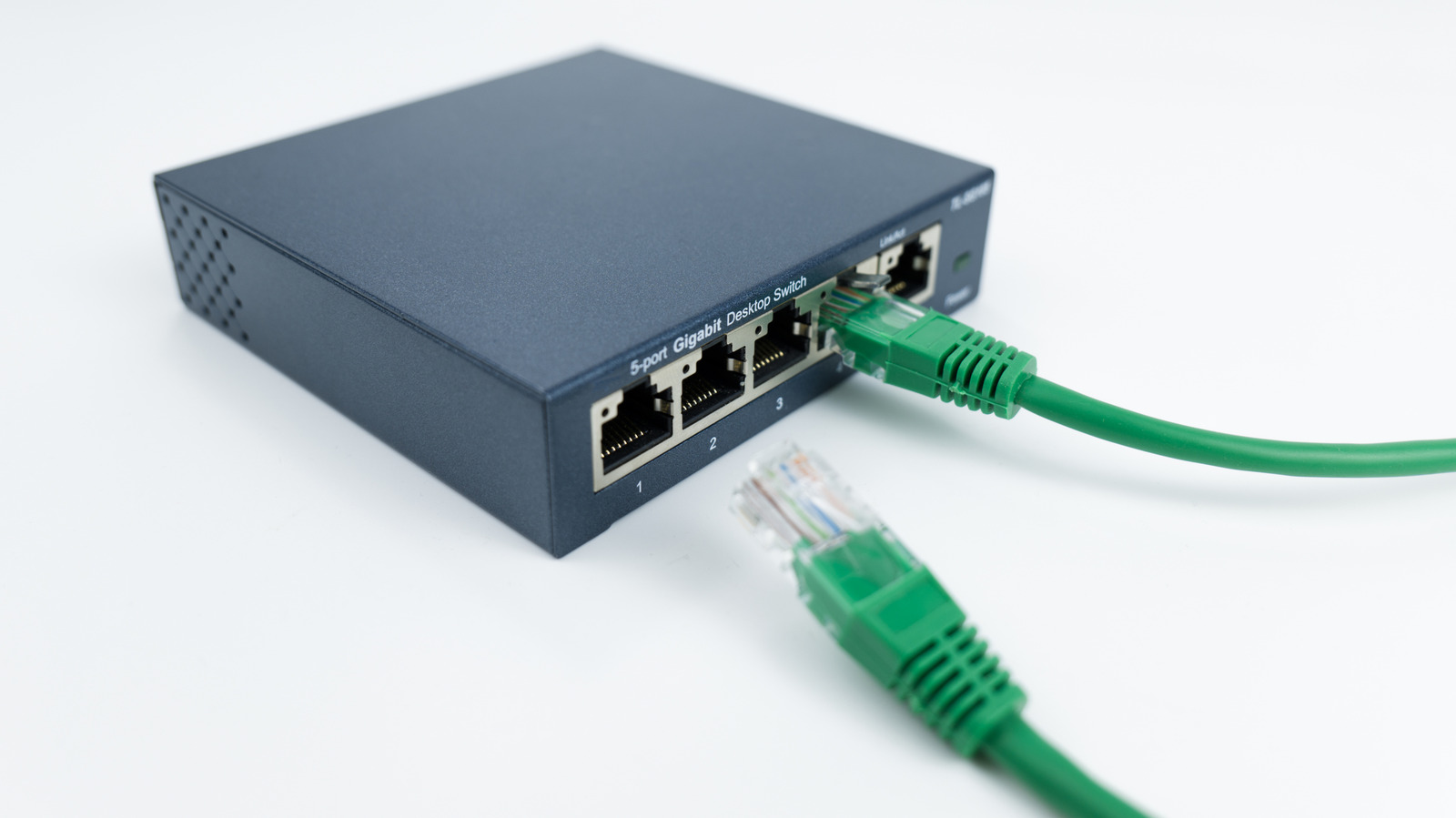
The secret lies in a compact, plug-and-play device known as an Ethernet switch. Rather than replacing your current router, an Ethernet switch allows you to expand your wired network capacity by simply connecting to one of your router’s existing LAN ports. This hardware effectively acts as a multiplier for your network infrastructure. Depending on the specific model and your particular requirements, a single switch can add four, eight, 16, or even more ports to your home setup. This expansion occurs without the need to reconfigure your existing network settings or invest in costly hardware upgrades. For those seeking to optimize their home network for better performance, the transition to a switch-based expansion is an essential, albeit simple, upgrade.
While wireless technology, including the latest Wi-Fi standards, has made significant strides in speed and reliability, wired Ethernet remains the gold standard for consistent performance. For activities that require low latency and high stability—such as competitive online gaming, high-bitrate 4K media streaming, and the transfer of large files between local devices—a physical connection is superior. By utilizing an Ethernet switch, users can ensure their most critical devices maintain that reliable connection, effectively offloading the wireless spectrum to accommodate mobile devices that truly require the flexibility of Wi-Fi.

An Easy Fix for Expanding Your Network Capacity
Most standard home routers are designed with a fixed number of physical connections, typically featuring four LAN (Local Area Network) ports and one WAN (Wide Area Network) port. The WAN port is dedicated to your connection from your modem or internet service provider, leaving only four ports available for your personal use. While this may have seemed sufficient at the time of purchase, the rapid proliferation of connected household technology often renders this capacity inadequate. As households upgrade to higher-resolution streaming plans, for instance, a smart TV that once functioned adequately over Wi-Fi may begin to experience buffering, creating a clear need for a stable, wired connection.
When all four ports are occupied, many users mistakenly look toward "splitters" as a quick fix. However, it is vital to distinguish between an Ethernet switch and a splitter. A network switch is an active device that manages data traffic efficiently, ensuring that each connected device receives the bandwidth it requires. A splitter, by contrast, is generally ineffective for network expansion and can cause significant connectivity issues. By integrating a switch, you essentially provide your router with an array of extra LAN ports, functioning much like an HDMI switch or a USB hub does for your television or computer.
For the vast majority of residential users, an "unmanaged" switch is the most practical choice. These devices are designed for immediate operation—you plug them in, connect the cable from your router, and they begin functioning without any manual configuration. While "managed" switches exist, offering advanced features such as traffic monitoring, VLAN support, and port-level configuration, these are typically overkill for a standard home environment. Unmanaged switches provide the necessary port expansion at a lower price point, maintaining the simplicity that most home users prioritize.
Understanding the Mechanics of a Network Switch
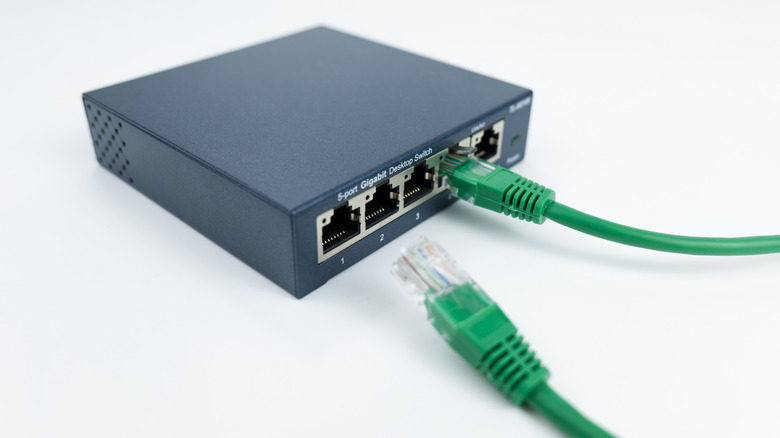
To understand why a switch is the correct tool for this task, one must look at the fundamental difference between a router and a switch. A router is responsible for "routing" traffic between your home network and the wider internet; it handles IP addressing, security, and the translation of data packets between your internal devices and the external web. A switch, conversely, is a layer-2 device that operates strictly within your home network. It does not manage your connection to the internet service provider, nor does it replace the security or routing functions of your router. Instead, it acts as a traffic controller, ensuring that data sent from one device connected to the switch is routed correctly to the router or to another device on the same local network.
Crucially, installing an Ethernet switch does not negatively impact your Wi-Fi performance. Because the switch is an extension of the wired network, it operates independently of the wireless radio signals emitted by your router. For those who find themselves in a situation where running new, permanent Ethernet cables through the walls of their home is not a viable option, there are several alternatives to consider. Technologies such as MoCA (Multimedia over Coax) adapters can leverage existing coaxial cable wiring—typically used for cable television—to transmit high-speed data. Similarly, powerline adapters utilize the existing electrical wiring in a home to create a bridge between rooms. For those willing to perform a more delicate installation, surface-mounted fiber optic kits can provide high-speed performance by running thin, flexible cables along baseboards. While these alternatives are generally more expensive and require more careful installation than a standard Ethernet switch, they offer a reliable path to wired performance when structural limitations prevent traditional cabling.
Navigating Router Ports and Performance Bottlenecks
As you expand your network, it is important to understand that not all Ethernet ports are created equal. Aside from the distinction between the WAN port—which is strictly for your incoming internet service—and the LAN ports, users must be aware of the performance standards supported by their hardware. Ethernet performance is a collaborative effort between the port on the router, the port on the switch, the port on the end device, and the cable itself.
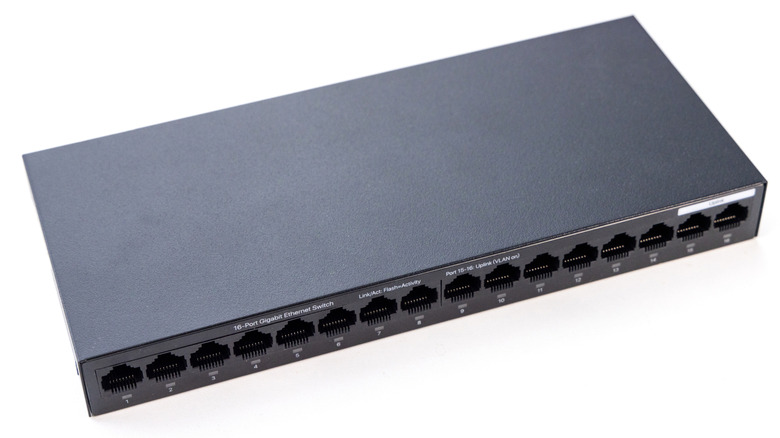
A common pitfall occurs when a user connects a high-performance device to a switch that does not support the same speed standard. For instance, if your router and your workstation both support 2.5 gigabit Ethernet, but you connect them through a switch that is limited to 1 gigabit speeds, the entire path will be throttled to that lower 1 gigabit ceiling. While most modern unmanaged switches offer gigabit performance—which is more than sufficient for most residential internet plans—those with extremely fast multi-gigabit services or heavy local network traffic needs should check the specifications of the switch before purchasing.
To determine the capabilities of your equipment, always consult the device manual or the manufacturer’s online documentation, as port speeds are not always explicitly labeled on the chassis. If your router features a variety of ports, some of which may support higher speeds, it is advisable to connect your switch to the highest-speed port available. While your total internet throughput will ultimately be limited by your ISP plan, ensuring that your local hardware is not bottlenecking your internal communication—such as transferring files between a PC and a NAS drive—will ensure a smoother overall experience. By thoughtfully managing these connections, you can effectively bypass the physical limitations of your hardware, ensuring that every device in your home has the reliable, high-speed connection it needs to function at its best.